What Is the WordPress 7.0 Connectors API and Why Does It Matter?

Published on
–
7
min read
WordPress 7.0 is due to land on 20th May 2026, and alongside the usual collection of editor improvements and performance work, it includes something that is mostly aimed at developers but will quietly affect anyone running AI-related plugins on their site — the Connectors API.
If you have ever installed an AI plugin and then spent five minutes hunting around different settings screens to figure out where to paste your API key, you will understand the problem this API is trying to solve.
The Problem It Solves
Until now, there has been no standard way for WordPress to manage connections to external services. Every plugin that integrates with an AI provider has rolled its own approach, its own settings page, its own way of storing API keys, its own UI for showing whether a connection is working or not. If you have three AI-related plugins active at once, you might have three completely different experiences, none of which talk to each other.
That is not a disaster, but it is messy. It means site owners have no central place to see what external services their site is connected to, and it means developers each have to solve the same problems from scratch.
The Connectors API is WordPress’s attempt to fix that at the core level.
What a Connector Actually Is
In simple terms, a connector is a standardised record for an external service. Each one carries a display name, a description, a logo, information about how authentication works, and an optional link to an associated WordPress.org plugin.
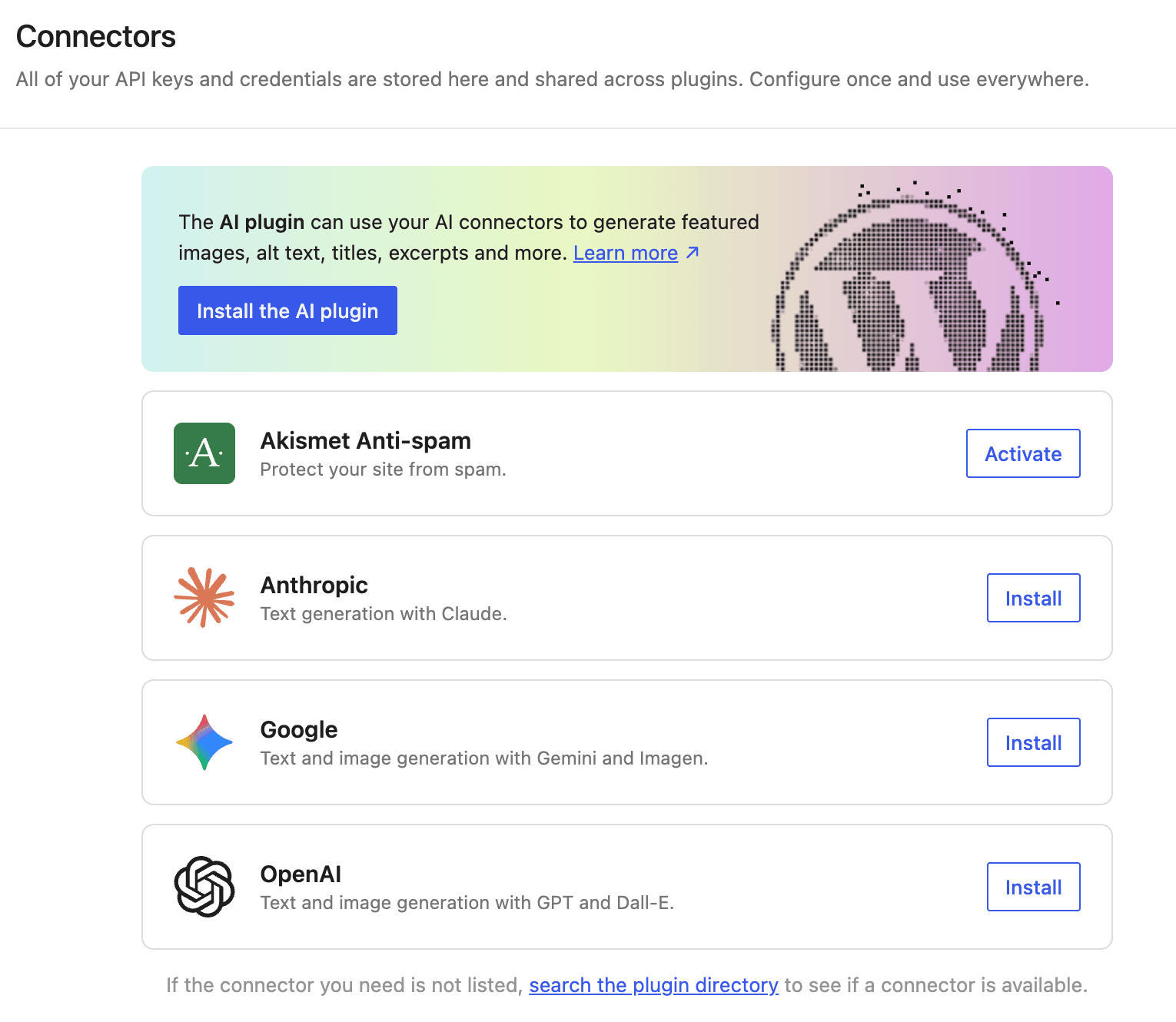
WordPress 7.0 ships with three built-in connectors: Anthropic, Google, and OpenAI. These are not plugins in themselves, they are registered entries that the system knows about, which then point to the relevant plugins and tell WordPress how to handle credentials for each one.
For those curious about the technical shape, a connector looks something like this in PHP:
array(
    'name'           => 'Anthropic',
    'description'    => 'Text generation with Claude.',
    'logo_url'       => 'https://example.com/anthropic-logo.svg',
    'type'           => 'ai_provider',
    'authentication' => array(
        'method'          => 'api_key',
        'credentials_url' => 'https://platform.claude.com/settings/keys',
        'setting_name'    => 'connectors_ai_anthropic_api_key',
    ),
    'plugin'         => array(
        'slug' => 'ai-provider-for-anthropic',
    ),
)That structure is what drives the new admin interface.
The New Settings > Connectors Screen
The most visible change for site owners is the new Settings > Connectors admin screen. This is where all registered ai_provider connectors appear, displayed as cards.

Each card shows the provider name, description, and logo. More usefully, it also shows:
- Whether the associated plugin is installed and active, with an install or activate button if it is not
- A link to the provider’s site where you can get API credentials
- Where your current API key is coming from, whether it is stored in the database, set via a PHP constant in your
wp-config.php, or defined as an environment variable - The current connection status
That last point is genuinely useful. Knowing at a glance whether your API key is present, where it is stored, and whether the connection is actually working removes a fair bit of guesswork when something is not behaving as expected.
A Free Plugin That Already Uses It
If you want to see the Connectors API being put to practical use straight away, there is already a free plugin worth installing: AI Experiments, published by WordPress.org themselves.
It is described as experimental, but there is a lot already working. Once you have an AI provider configured through Settings > Connectors, the plugin can use that connection to generate featured images from your post content, produce alt text for images in the Media Library, suggest post titles, write excerpts, and summarise long-form content. There is also a review feature that reads through your post block by block and adds editor notes with suggestions covering accessibility, readability, grammar, and SEO.
The fact that it is built and maintained by the WordPress.org team makes it a useful reference point, both as a practical tool and as an example of how the Connectors API is intended to be used. If you are a developer thinking about building on top of this infrastructure, it is worth pulling apart how AI Experiments is put together.
It is worth being clear that this is experimental, functionality may change as the team gathers feedback, but for day-to-day content work it already covers a lot of the AI-assisted tasks that would otherwise require a paid third-party plugin.
How Auto-Discovery Works for Plugin Developers
If you are building or maintaining an AI provider plugin, the Connectors API has a reasonably elegant feature: if your plugin registers with the WP AI Client’s default registry, a connector entry is created for you automatically. You do not need to write extra code to appear on the Connectors screen.
The initialisation process works like this: the three built-in connectors are registered first, then the system queries the WP AI Client for all registered providers and merges in any additional metadata from those providers. After that, the wp_connectors_init action fires, which allows plugins to override metadata or register entirely new connectors.
In practical terms, if you are working with the WP AI Client already, you get the Connectors screen integration for free.
What I Built With It
To get a feel for how the Connectors API actually works in practice, I put together a small side project: a WooCommerce Log File AI Analyser. It is fairly simple in concept, it adds an Analyse button to each log file listed under WooCommerce > Status > Logs, and when you click it, it sends the contents of that log to an AI provider via the Connectors API and returns a plain-language summary in a modal.
The idea is that WooCommerce log files are not exactly easy reading. They are useful when you know what you are looking at, but for most site owners they are walls of technical output that are difficult to interpret without some experience. Having an AI summarise what is in there, what errors occurred, what they likely mean, whether anything needs attention, in language that anyone can understand is genuinely handy.
It does a bit more than just summarise, though. The analyser attempts to identify which plugin or theme is the root cause of the main issue, reads that plugin or theme’s readme file to pull in relevant details, and then links directly to its support page. So rather than just getting a plain-language explanation of what went wrong, you get a direct route to where you can actually report it or get help.
The AI-generated report is also downloadable, which means you can hand it straight to a plugin or theme author’s support team when you raise a ticket. That felt like an important addition, a well-structured error summary in plain language is considerably more useful to a support team than a copy-pasted log file, and it saves the site owner from having to translate what they are looking at.
Building it against the Connectors API rather than wiring up an API key directly meant I did not have to handle credential management myself. If the site owner has already configured an AI provider through Settings → Connectors, the plugin just uses that. It made the development side considerably cleaner.
Settings page

WooCommerce > Status > Logs when viewing a log file.

Analysis results
This is an example of the analysis results of a deliberate issue I caused in the third-party Payment Plugins for Stripe WooCommerce plugin to show how the results would redirect a user to the Payment Plugins website and not ourselves here at WooCommerce.com.
The visit support page button links to the payment plugins website. The user can also download an HTML report to provide to support.

I may release this as a free plugin once WordPress 7.0 officially ships on 20th May. I want to test it a bit more against real log files first, but if there is interest, I will put it up on the WordPress.org plugin directory. I will post here when it is ready.
My Take on This
I think this is a sensible move, and honestly, one that is a little overdue. The AI plugin ecosystem in WordPress has grown quickly over the past couple of years, and the fragmented approach to API key management and service configuration was starting to become a real friction point, both for site owners trying to manage things and for developers building on top of each other’s work.
Standardising this at the core level is the right call. It gives everyone, plugin authors and site owners alike, a shared foundation to build on and a shared place to look when things go wrong.
That said, it is worth being clear about what this is in its first version: it is fairly narrow in scope. The focus is entirely on AI providers, which makes sense given how much the AI plugin ecosystem has grown. This is not a general-purpose external services manager, it is specifically about standardising how WordPress sites connect to AI services, and it does that job well.
What You Should Do
If you are running AI-related plugins, the Settings > Connectors screen will only be useful to you if the plugin developers behind those tools have updated their products to use the Connectors API rather than their own custom API key implementations. This is the part that WordPress cannot control — the core framework is there, but adoption depends on the plugin ecosystem catching up. It is worth keeping an eye on changelogs for any AI plugins you rely on to see whether they add Connectors support after 7.0 ships.
If you are building a plugin that integrates with an AI provider, the developer note on the Make WordPress Core blog has a full walkthrough of the public API functions, the initialisation lifecycle, and how to register or override connector metadata. It is worth a read before 7.0 ships.
WordPress 7.0 is expected on 20th May 2026. The full developer note is on Make WordPress Core.
Leave a Reply